
A photo QR code on iPhone and Android
The upload page is the same on iPhone and Android. What changes is how the camera detects the QR. How to test both before you print.

Émile Leroux
3 min read
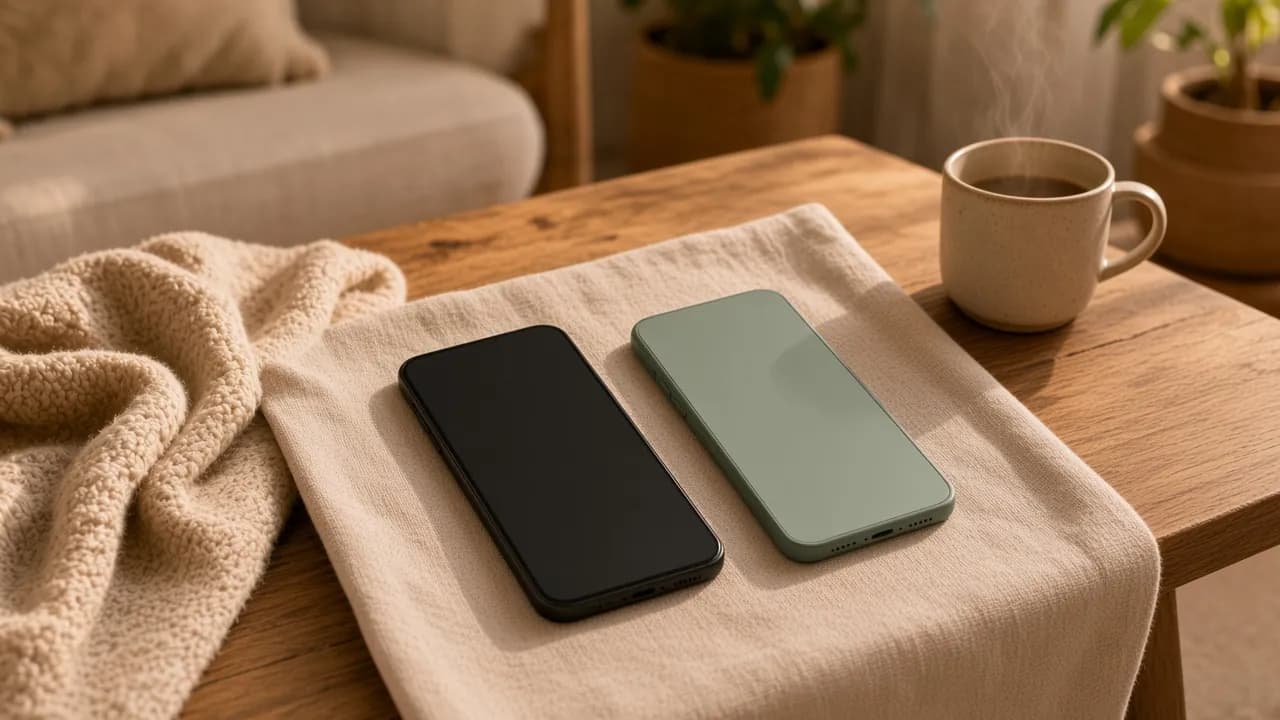
A photo QR code has to work on your cousin's iPhone and on your friend's Android, with the same instruction. The web page is identical. What changes is the first gesture: making the link appear.
If you only test one of the two, you can print a sign that fails for half the room.
The scan
On iPhone, the Camera app shows a banner once the QR is sharp. You tap the link. In Settings, Camera, QR code detection needs to be on. That is the case on many phones, not on all of them if someone turned it off.
On Android, a lot of cameras detect the QR on their own. Others hide the scan behind an icon on the camera screen. If nothing moves, Lens, already on a large share of phones, aims at the square and offers the link.
You do not write two manuals on the sign. The sentence stays: "Scan with the camera. Nothing to install." If someone gets stuck, the person next to them opens Lens or checks the setting. That is faster than a trip through an app store.
The upload
Once the page is open in the browser (Safari, Chrome, or the phone's browser), the path joins up.
- Pick a photo or a video from the camera roll.
- Or take a new shot in the moment.
- Send, with no account.
The phone's file picker handles the usual formats, including photos an iPhone stores in its own format. You do not ask guests to convert anything.
Avoid opening the link inside another app's browser (a social network, for example) if the upload gets stuck there. Scanning the QR opens the real browser. That is one more reason to prefer the printed card over a link pasted into a story.
The test, in practice
- iPhone: scan, photo from the camera roll, short video, check in the host gallery.
- Android: the same loop, ideally not on the same model you own if your guests carry several brands.
- Write down the sentence you will say if someone says "my camera sees nothing".
- Only then, print.
The Komos trial accepts these test uploads within 15 media and one guest who uploads. If you want a second test phone to upload too, unlock the event (85 CAD) or run both tests as the same uploader, you. The cap counts people who upload, not phone brands.
What not to do
- Write "iPhone only" or "Android only".
- Tell people to download a different app depending on the phone.
- Test only in a computer browser. Guests will be on a phone.
- Ignore a failed scan on one model and tell yourself "someone will help". Help them, with a sentence ready.
In summary
iPhone and Android use the same upload page. Check the scan on both before you print, and keep one instruction: camera, link, camera roll, send.
The scan steps are in how to scan a photo QR code. The event page is in a QR code for photos.
Create an event and test both phones, or see pricing: 85 CAD, once.